
License Request Guide
License Request Guide
1)
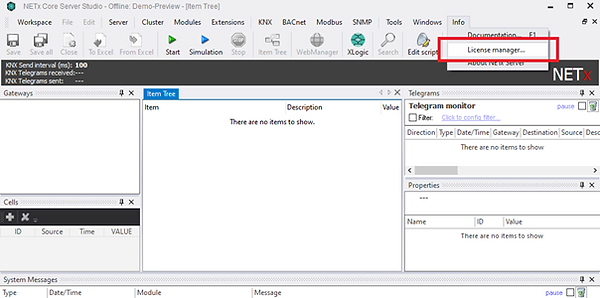
Open the software (NETx Core Server Studio / NETx MP Server Studio), navigate to the menu, click on "Info," and select "License Manager."
2)
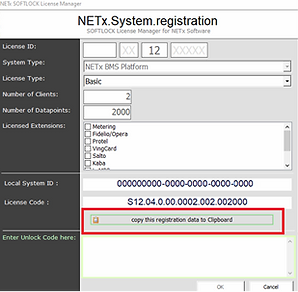
After making the selection, a separate window will open. In the License Manager, click on Copy this registration data to Clipboard.
3)
Copy the license request to the clipboard and send it along with your invoice number to register@netxautomation.com.
4)
By pasting the copied data from the clipboard, you generate a license request.
License ID:
System Type: NETx BMS Platform / NETx MP Server
License Type: HOME/BASIC
License Code: S1X.04.0.00.000X.002.00XXXX
Local Code: XXXXXXXX-XXXX-XXXX-XXXX-XXXX
Date: XX.XX.2020
Setup Version: 4.2.XXXX
Software Version: 4.0.XXXX.XXXX
Unlock Code:
5)
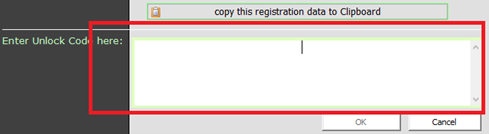
After receiving your payment, we will send you the license ID and unlock code, which you need to enter in the License Manager.
6)
Confirm the entered license code to activate the software.
Move a license
Move a license
Transfer of a software license to another system or after system changes.
Process
- Open the “License Manager” on the original system.
- Select “Transfer/Remove” to generate the Removal Code.
- Send the Removal Code to register@netxautomation.com
- You will receive a new Unlock Code for activating the software on the new or updated system.
Important Points
- Before the software can be used on another system, the existing license must be properly removed.
- The same procedure is required when upgrading the operating system to a different version.
- Keep the Removal Code safe until the license transfer process is completed.
- A relicensing fee may apply.


